Challenges
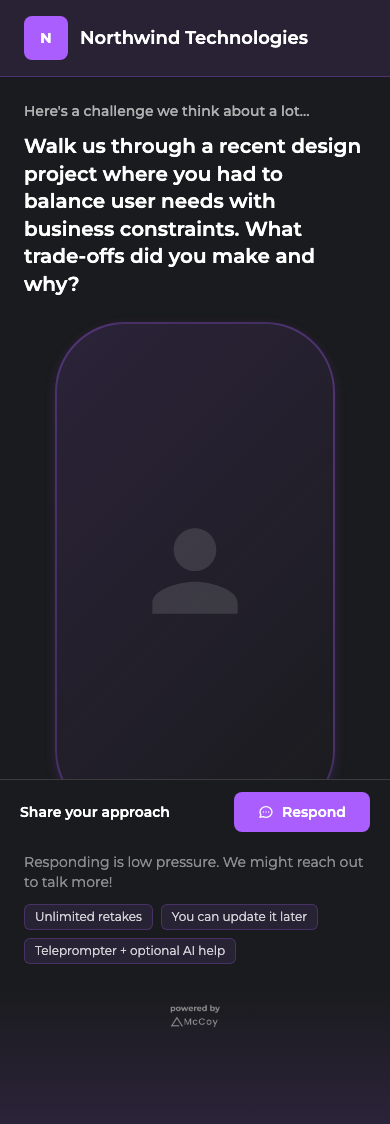
A challenge is a branded video question you share with respondents. Each role has one challenge.
Creating a challenge
- 1
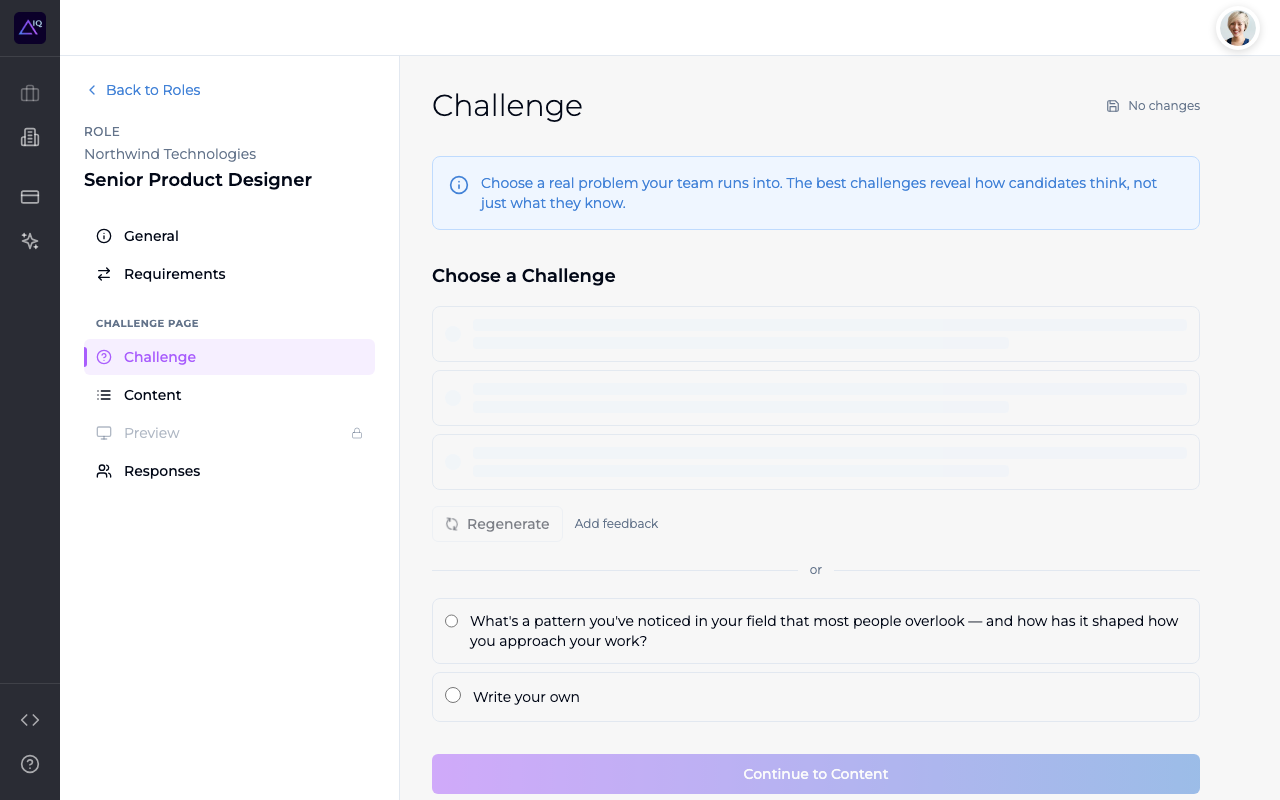
Navigate to your role and click the Challenge tab.
- 2
McCoy's AI recommends challenge questions based on your Role Insights. Browse the recommendations and select the one that best fits what you want to evaluate.
- 3
You can also write your own question or regenerate recommendations if none feel right. Add feedback to guide the AI toward better suggestions.
- 4
Click Continue to Content to proceed to the next step.
Feedback from collaborators
If the role has active collaborators, their input shows up alongside the challenge as you edit.
- Every section that has comments shows a small marker in the right margin of the tab. Click the marker to open the thread for that section.
- A collaborator's Notify Role Owner I like this click on the selected question or any alternate posts an endorsement to the Selected Challenge thread. Each endorsement carries a Use this question button that swaps the endorsed text into the Selected Challenge in one click.
See the Collaborators guide for the full picture.
Content: intro script and highlights
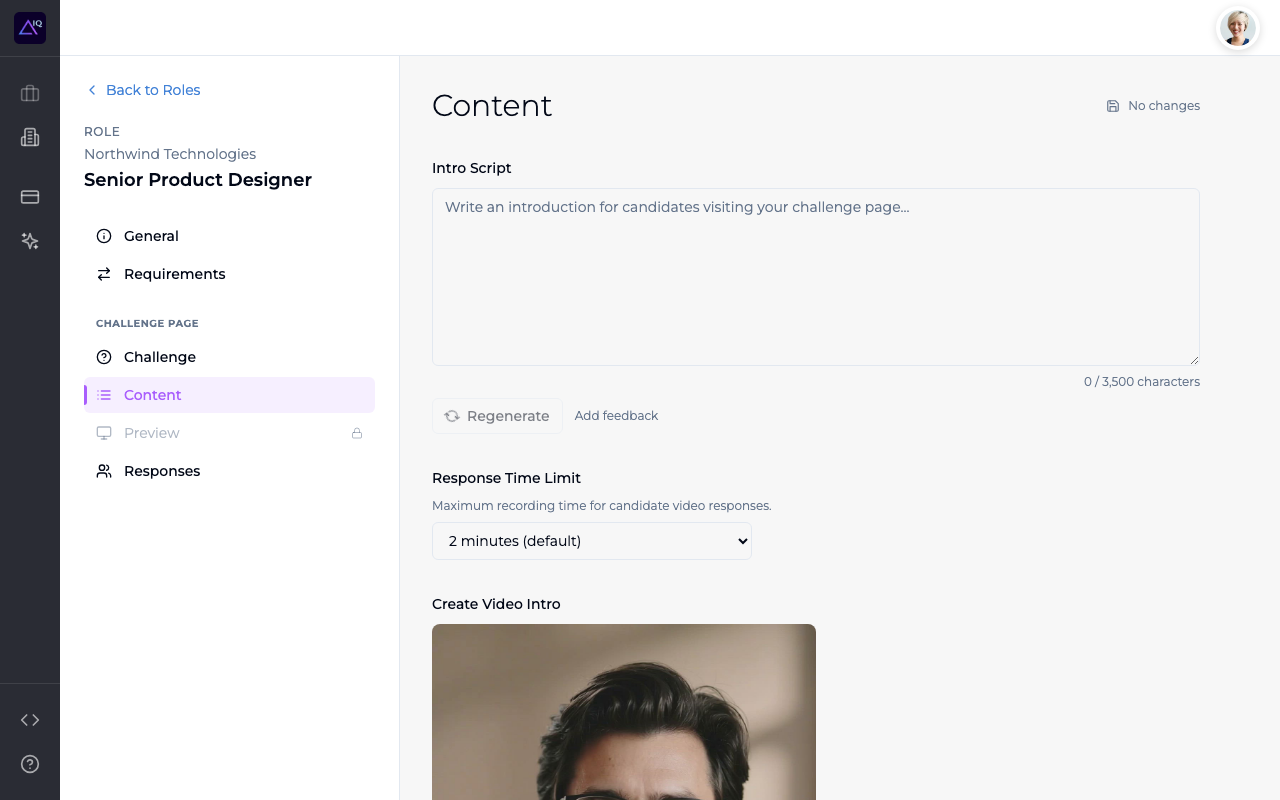
After selecting a question, the AI generates two pieces of content:
- Intro script — what will be spoken in the video intro (by you or an AI avatar). This sets the context for the respondent before they see the question.
- Key highlights — bullet points displayed on the challenge page that help respondents understand what you're looking for.
Both are editable — you can refine the wording, add details, or rewrite entirely. Changes are saved automatically.
Branding: colors and fonts
Your challenge page is automatically branded with your company's colors, fonts, and logo. McCoy extracts branding from your company website — you never need to pick colors manually.
Setting up branding
- 1
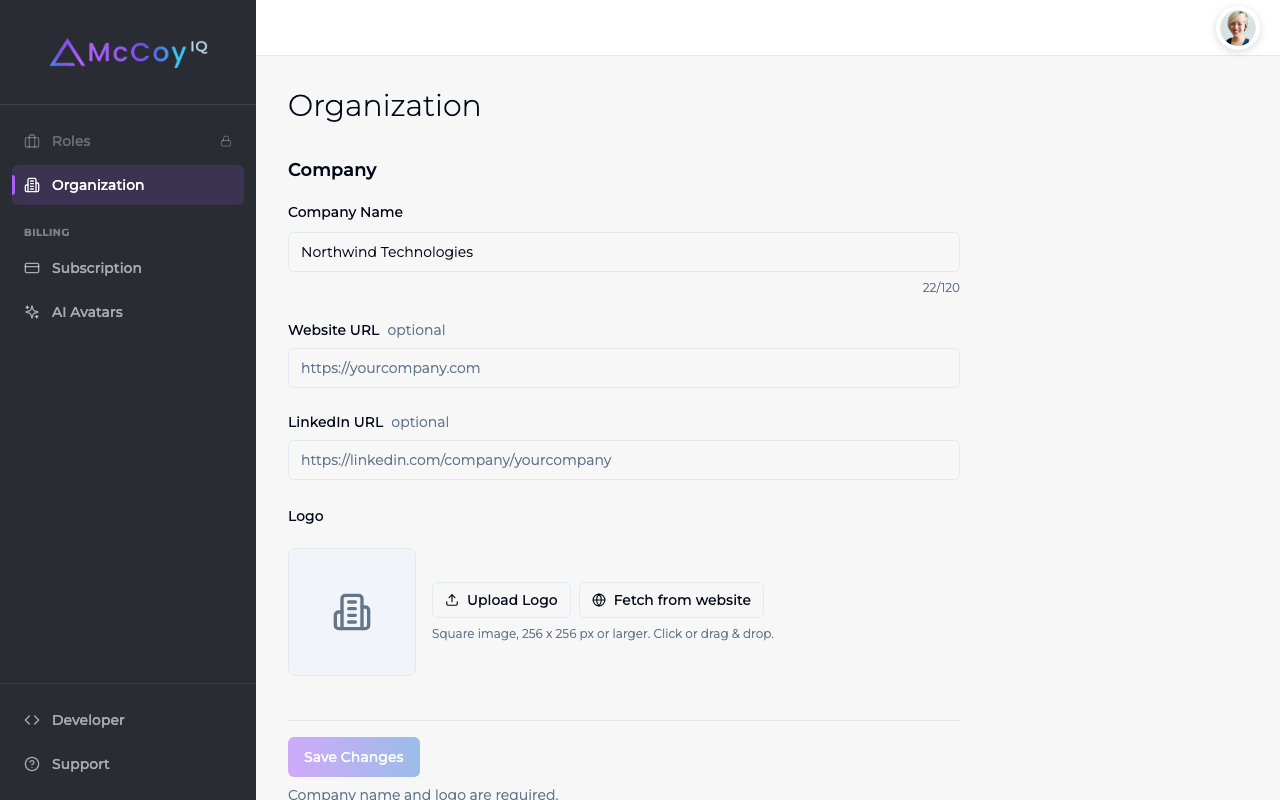
Go to Organization in the sidebar.
- 2
Enter your Website URL and click Save Changes.
- 3
On the challenge Content tab, click Match next to the color/font settings. McCoy's AI analyzes your website and extracts the correct brand colors and typography.
What gets extracted
- Background color — the primary background for your challenge page
- Text color — for headings and body text
- Accent color — for buttons and interactive elements
- Heading font — the font used for the challenge question and headings
- Body font — the font used for descriptions and highlights
You can also Fetch from website to automatically upload your company logo. The logo appears in the challenge page header.
Video intro
Each challenge has a video intro that plays when respondents open the challenge page. You have two options:
Option A: Record yourself
Use the built-in teleprompter with your generated intro script. The teleprompter scrolls at your speaking pace and you can re-record as many times as you need.
Option B: AI avatar
Choose from 18+ AI avatars to deliver the intro on your behalf. Each avatar has multiple looks and voices. Generating an AI avatar video uses one credit (credits can be purchased from the AI Avatars page in the sidebar).
Publishing
Once your challenge has a question, intro content, and branding, you're ready to publish.
- 1
Go to the Preview tab to see how your challenge page will look to respondents.
- 2
Click Publish. Your challenge goes live immediately.
- 3
Copy the shareable link (e.g.,
iq.mccoy.io/c/abc123) and send it via email, LinkedIn, a job posting, or any other channel.
What respondents see
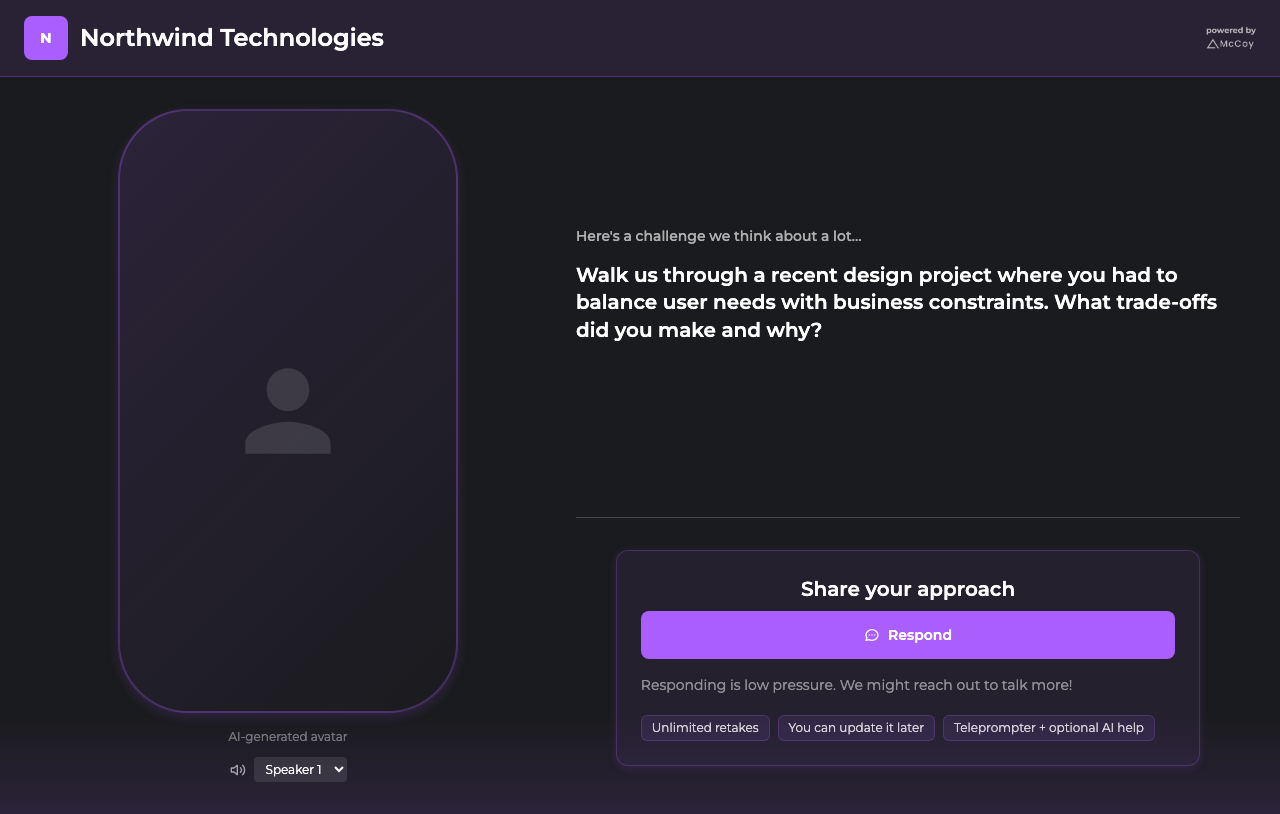
Published challenges get a branded page that respondents can access from any device. The page shows your company name and logo, the challenge question, video intro, key highlights, and a "Respond" button.
Respondents can reply from the web browser (desktop or mobile) or through the McCoy app. No account or app download is required to respond via web.
Desktop
Mobile