
Responses
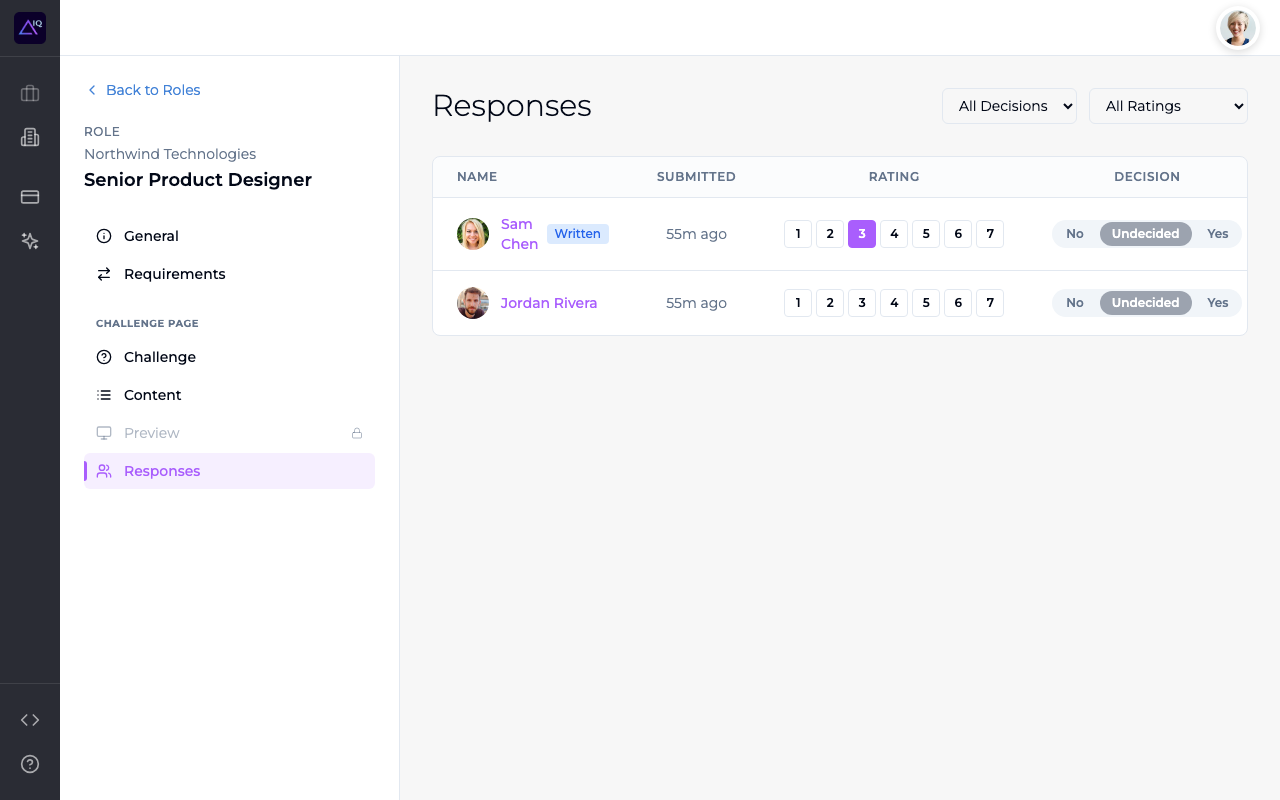
When respondents submit video or written responses to your challenge, they appear in the Responses tab for review.
Viewing responses
- 1
Navigate to your role and click the Responses tab.
- 2
You'll see a list of every response with the respondent's name, profile photo, submission time, and current rating/decision status.
- 3
Responses marked Written contain a text answer instead of a video. Click any response to view the full detail.
Response detail page
Click any response to open the detail view. Here you can watch the video (or read the written response), rate the respondent, make a decision, and add private notes.
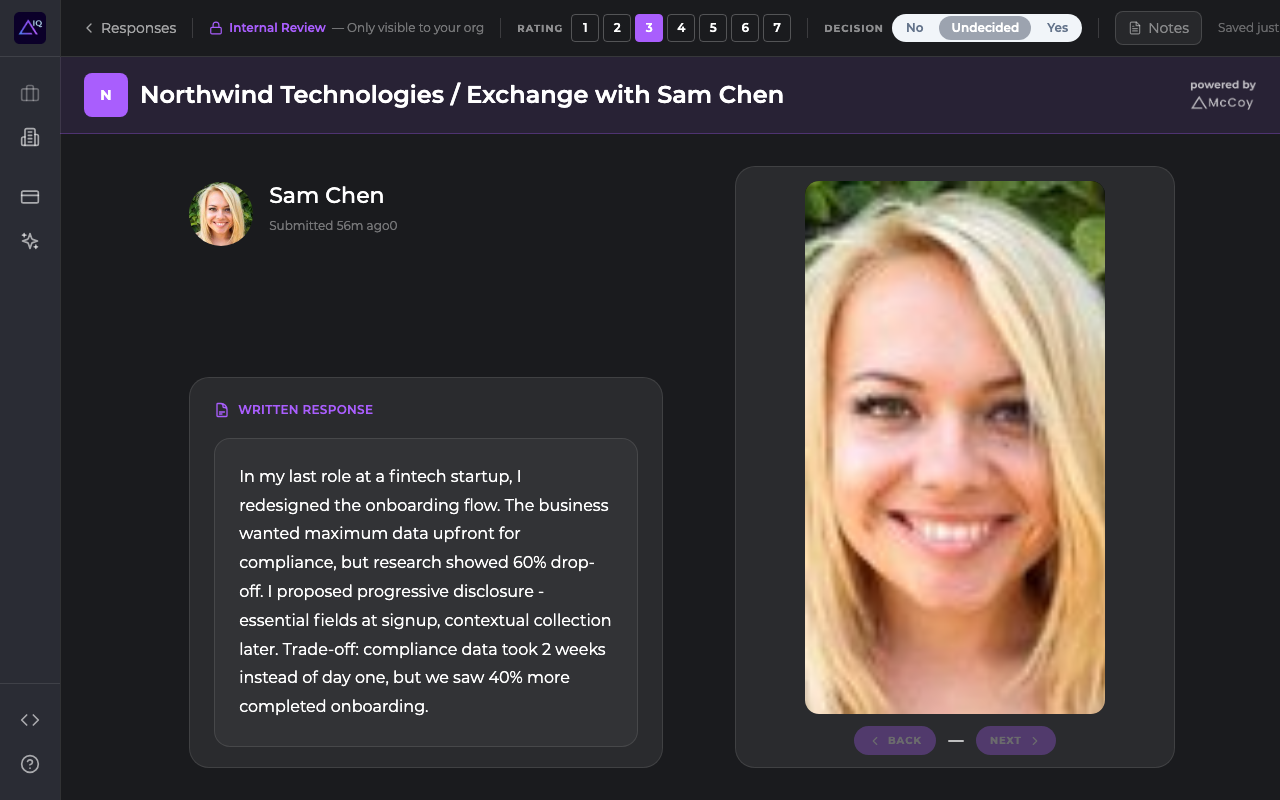
The header bar shows the rating picker, decision toggle (No / Undecided / Yes), and a Notes button. Use the Back and Next buttons at the bottom to navigate between responses without going back to the list.
Rating responses
Each response can be rated on a scale of 1 to 7. You can rate directly from the list view or from the response detail page.
- Click a number (1–7) next to a respondent's name to set their rating.
- Ratings are saved automatically — no submit button needed.
- Use the All Ratings dropdown to filter the list by rating.
Making decisions
Each response has a decision status: No, Undecided, or Yes.
- No — you've decided not to move forward with this respondent.
- Undecided — you haven't made a decision yet (default).
- Yes — you want to move forward with this respondent.
Click the decision buttons directly from the responses list or the detail page. Use the All Decisions dropdown to filter by decision status.
Adding review notes
When viewing a response detail page, you can add private review notes. These notes are only visible to you and your team — respondents never see them.
Use notes to capture your impressions, flag specific moments in the video, or record follow-up questions you'd like to ask in a follow-up conversation.
Response types
Respondents can submit two types of responses:
- Video response — a recorded video answering the challenge question. Includes a video player on the detail page.
- Written response — a text answer displayed inline. Marked with a "Written" badge in the list.
Exporting responses to CSV
Click the Export button at the top of the responses list to download a CSV containing every response for the current challenge — respondent name, email, submission time, rating, decision, review notes, and (where applicable) the response text.
The CSV is generated on demand and includes only the responses currently visible in the list — apply rating or decision filters before exporting if you want a narrower slice.
Analytics
The Analytics tab shows how respondents are engaging with your published challenge — views over time, response rate, device breakdown, and unique-viewer trends. It appears in the role's left rail next to Responses, and unlocks once the challenge is published.
What's shown
- Views — total visits to the public challenge page in the selected range.
- Unique Viewers — distinct visitors (deduplicated by session). Useful for separating curiosity clicks from repeat traffic.
- Responses — total submissions received in the range.
- Response Rate — responses ÷ views, rounded to a whole percent. A typical paid-plan challenge converts in the single-digit to low-double-digit range; trends over time are usually more meaningful than the absolute number.
- Views & Responses chart — daily lines for views and responses overlaid. The peaks usually map to when you shared the link.
- Device Breakdown — share of views by web / iOS / Android.
- Daily Unique Viewers — bar chart of distinct visitors per day.
Time range selector
Toggle the time window in the top-right of the page: 7D, 30D, 90D, or All. The KPI strip and all three charts re-fetch when you change the range.
Reading the data
- A flat line on views with a recent submission spike usually means a single high-intent recipient (one direct DM converts) — useful to catch.
- High views and low response rate often signal viewers who looked but found the question intimidating; consider rewording or shortening the intro.
- Heavy mobile-share in Device Breakdown is normal — McCoy's record flow works on phone, so don't treat mobile views as wasted.
Withdrawn responses
Respondents can withdraw their response at any time from the McCoy app. When a response is withdrawn:
- The response shows a Withdrawn status in the list.
- The video or text content is no longer accessible.
- The respondent can submit a new response if they choose to.
Deleted accounts
If a respondent deletes their McCoy account, their response remains visible but their profile information (name, photo) may no longer be available. The video or text content of their response is preserved.
What respondents see
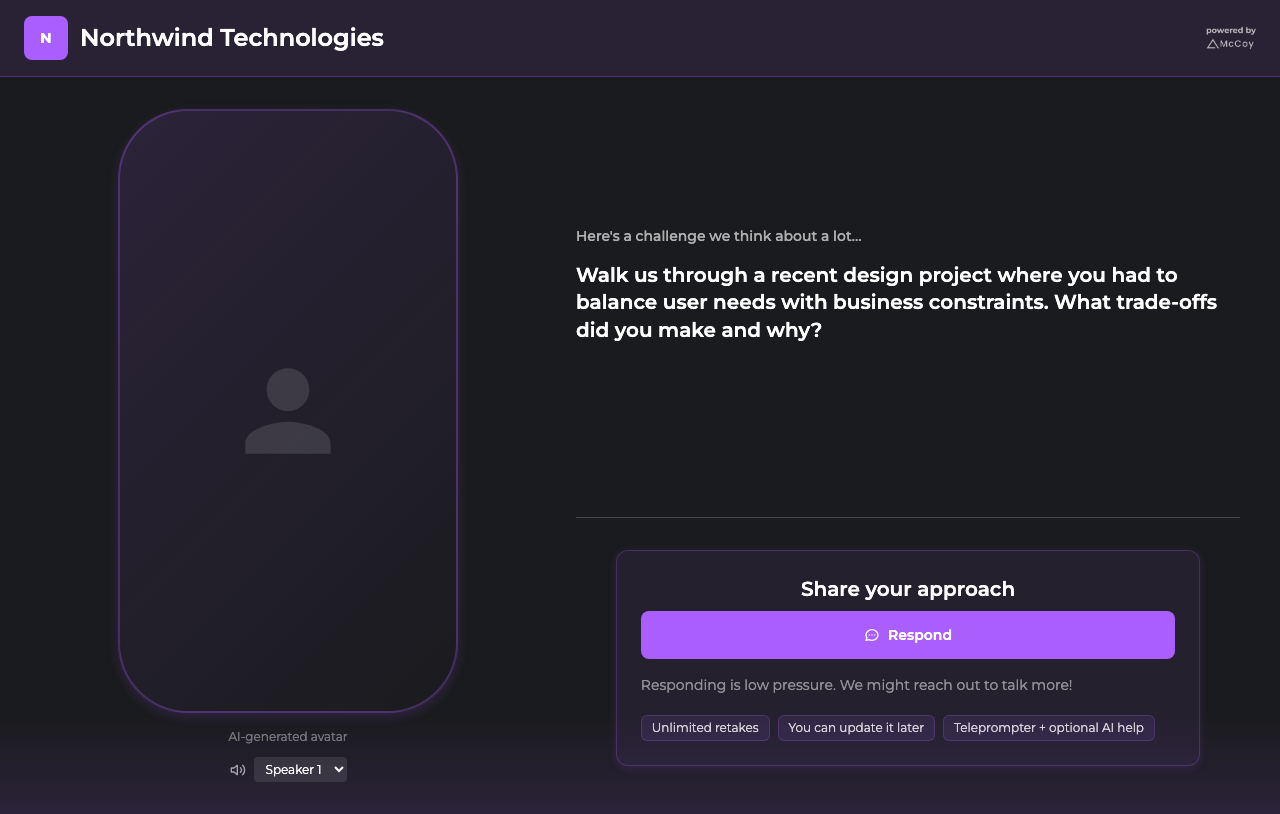
When a respondent opens your challenge link, they see your branded challenge page with the question and a "Respond" button. The page works on both desktop and mobile — no app download required.
Desktop
Mobile
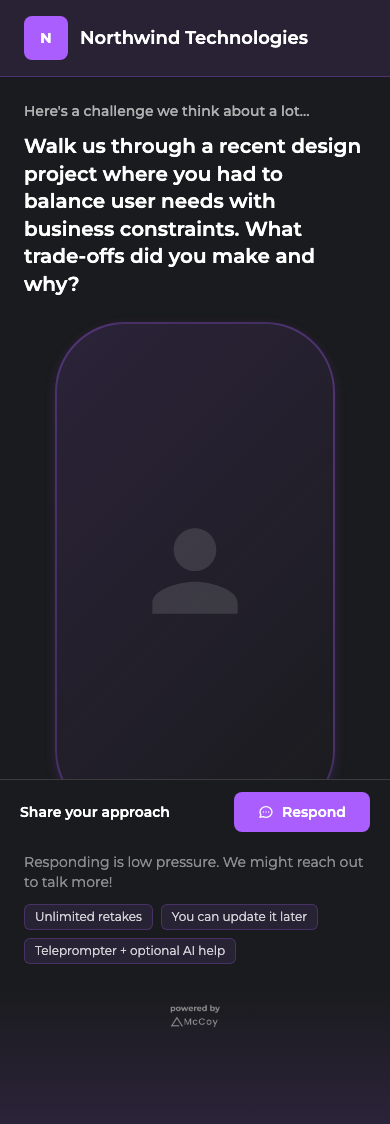
Respondents on mobile devices can also respond through the McCoy app (iOS and Android), which provides a guided experience with AI-powered coaching to help them prepare their best response.
Notifications
You'll receive an email notification when a new response is submitted. Notification preferences can be managed in your account settings.